How to make stickers with Cricut Print Then Cut
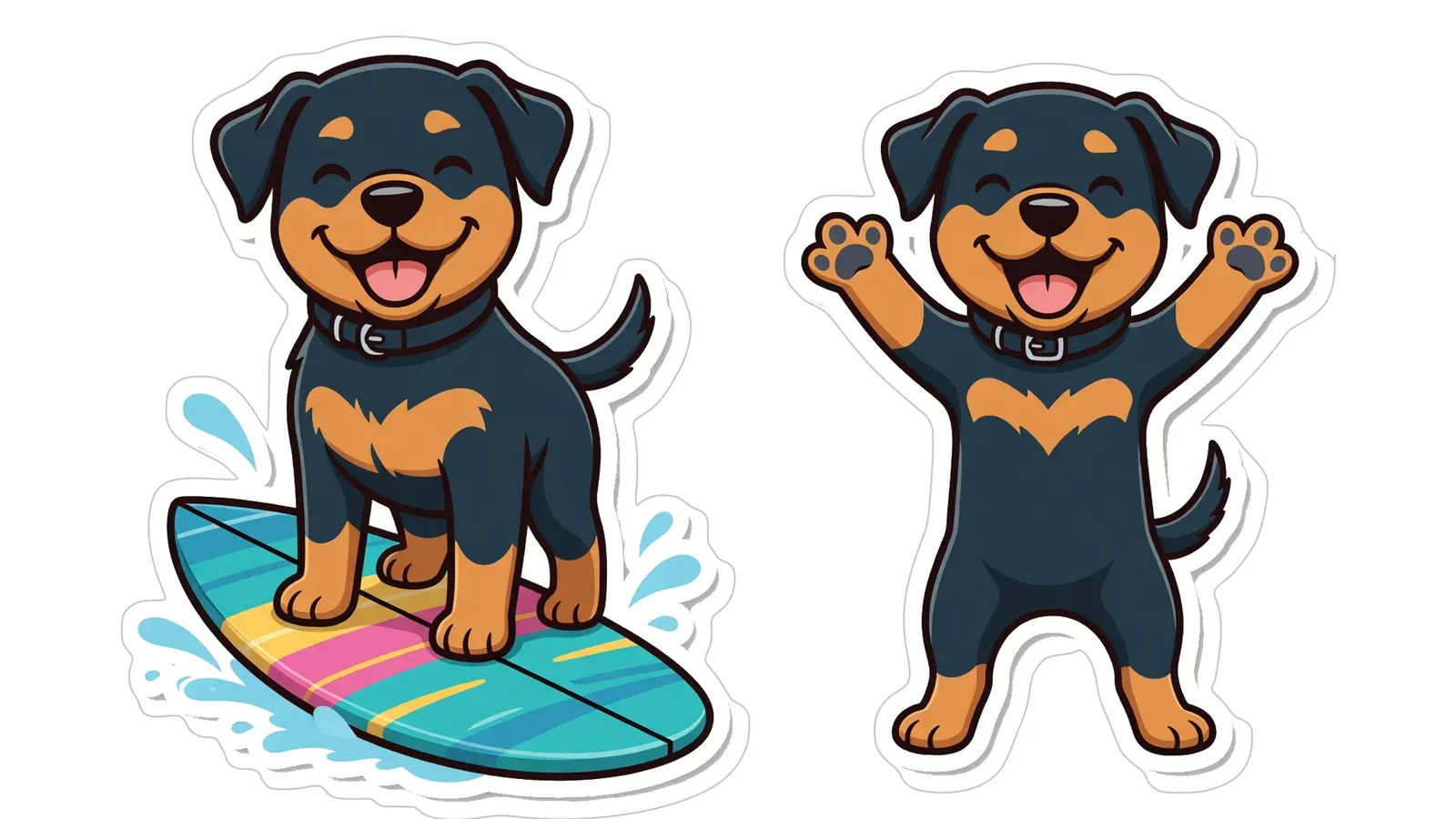
To make stickers with Cricut Print Then Cut, you need each sticker as a transparent PNG. Upload it to Design Space as a Print Then Cut image, print it with bleed on sticker paper, and let the machine read the registration marks and cut around the outline.
The steps below cover the whole job, from the photo to a finished sheet, plus the settings that fix the usual “it cut in the wrong place” problem.
What you need
- A Cricut that supports Print Then Cut (the Explore and Maker families; the original Cricut Joy does not).
- An inkjet printer. Cricut’s guidance is written for inkjets, and printable sticker paper is usually made for them.
- Printable sticker paper, matte if possible. Glossy and holographic papers look great but reflect light, which can stop the machine reading the marks.
- A LightGrip or StandardGrip mat.
- Your stickers as PNG files with a transparent background, one file per sticker. The transparency is what tells Design Space where the edge of each sticker is.
Step 1: Get sticker files with a border
A sticker looks finished when it has a white border around the drawing, the “die-cut” look. If you start from a photo, you need to remove the background, simplify the picture into an illustration, and add an even border before you export a transparent PNG for each sticker.
Our photo to sticker maker does those steps for you. You upload a photo and choose a style and how many stickers you want (1, 4 or 6). You get:
- Each sticker as its own transparent PNG with a 3 mm white border, ready for Cricut Print Then Cut;
- The whole sheet as a PDF and a PNG for printing at 100% on A4 or Letter sticker paper, with a thin grey outline you can follow with scissors;
- An SVG cut file with the cut lines in red, sized in millimetres, for Silhouette Studio and other cutters.
Step 2: Upload to Design Space
- In Design Space, start a new project and choose Upload → Upload Image.
- Pick a sticker PNG. Because the background is already transparent, there is nothing to remove. Continue.
- When asked how to use the image, choose Print Then Cut image (not “Cut image”, which would throw the colours away).
- Repeat for each sticker, then add them all to the canvas.
Step 3: Size and arrange
- Resize each sticker on the canvas to the size you want. Design Space keeps the proportions if the padlock is closed.
- The printable area is smaller than the paper, because part of the page is reserved for the registration marks. Design Space shows the limit for your machine and paper size; Cricut’s help article How large can I Print Then Cut? has the current figures.
- Click Make It. Design Space arranges the stickers on one or more pages inside a black rectangle: those are the registration marks.
Step 4: Print with bleed
- Choose Send to Printer.
- Turn on Add Bleed. It extends the colour a little past the cut line, so a cut that lands a hair off does not leave a white sliver. Our stickers already end in a white border, so bleed simply keeps that border clean.
- Turn on Use System Dialog if you need to choose the paper type, and set it to match your sticker paper. Keep the scale at 100%. A scaled printout moves the marks, and the cut will miss.
- Print, and let the ink dry for a few minutes.
Step 5: Cut
- Place the printed sheet on the mat, top-left corner aligned, and load it.
- Choose the material setting for your paper, such as “Sticker Paper” or “Printable Vinyl”. For kiss-cut stickers (cut through the sticker but not the backing) start with that setting. For stickers cut all the way out, use a heavier setting or cut twice.
- Press Go. The machine scans the black rectangle, then cuts.
- Before you unload, lift a corner of one sticker. If the cut is not through, press Go again to repeat the cut.
When the cut misses the print
| Problem | Likely cause | Fix |
|---|---|---|
| “Unable to read registration marks” | Glare or direct light | Matte paper, turn off overhead lights, or cover the marks with matte tape |
| Cut is offset by a millimetre or two | Printer scaled the page | Print at 100% with “Fit to page” off |
| Cut drifts more across the sheet | Paper slipped on the mat | Fresh mat, press the sheet down firmly |
| Cut is fine but stickers have a white line | No bleed | Turn on “Add Bleed” |
| Backing is cut through | Pressure too high | Use the kiss-cut setting or less pressure |
If cuts are still off on a good printout, run the Print Then Cut calibration from Design Space’s menu. It realigns the machine’s sensor and blade.
Silhouette and other cutters
Silhouette machines use registration marks too, but you set them up in Silhouette Studio (Page Setup → Registration Marks) and print from there. Our SVG cut file opens there with the cut lines already placed over the sheet image. Note that opening SVG files needs Silhouette Studio Designer Edition or higher.
No machine? Use scissors
Every sheet from the sticker maker also prints with a thin grey outline around each sticker. On sticker paper, cut along it with small scissors or a craft knife. Rounded die-cut borders are much easier to follow by hand than the outline of the drawing itself.
Frequently asked questions
- Which Cricut machines can do Print Then Cut?
- The Explore and Maker families support it. The original Cricut Joy does not. Check Cricut's help pages for your exact model and the current maximum size.
- Why does my Cricut fail to read the registration marks?
- The most common causes are glare from glossy paper, a bright light shining on the mat, or a printout that was scaled down. Print at 100%, use matte paper if you can, and turn off overhead lights near the machine.
- Can I make the stickers without a cutting machine?
- Yes. Print the sheet on sticker paper and cut along the thin outline with scissors or a craft knife.
Making this yourself? photo to sticker maker is the quickest way to start.