How to restore old photos: scan, repair, print
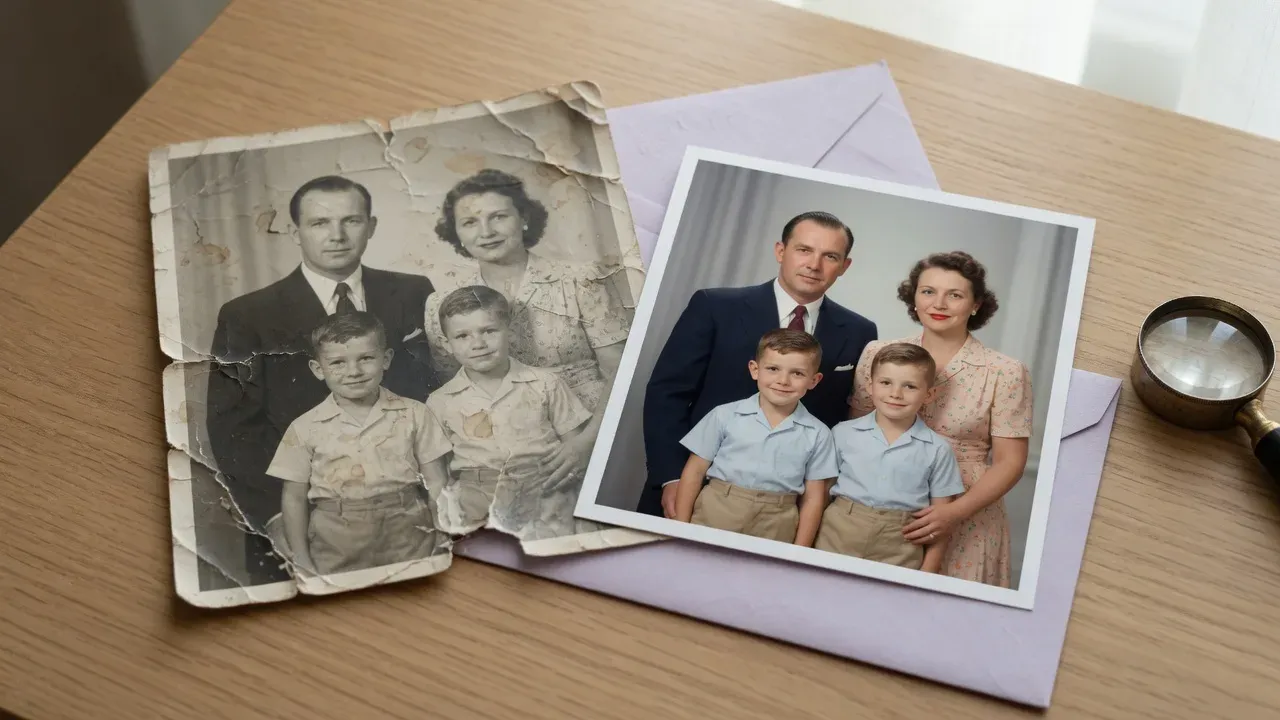
To restore an old photo, start with a good digital copy: scan the print at 600 DPI, or photograph it flat in soft daylight. Then let a restoration tool repair the scratches, fading and blur, check the faces against the original, and print from the restored file.
This guide walks through each step and is honest about where restoration stops: some damage can be repaired, and some can only be guessed.
Step 1: Make a good digital copy
The scan is the one step you cannot fix later, so it is worth getting right.
With a flatbed scanner (best):
- Wipe the glass with a microfibre cloth. Dust on the glass shows up as specks on every scan.
- Scan at 600 DPI for ordinary prints and 1200 DPI for small ones (wallet-size, contact prints) so you can enlarge them.
- Scan in colour, even for black-and-white photos. The colour scan keeps the warm tones of old paper and gives restoration more information to work with.
- Save as PNG or TIFF for the archive copy. Repeated JPEG saves lose detail.
- Turn off the scanner’s own “dust removal” and “sharpening” for the archive copy. You can always add those later; you cannot undo them.
With a phone (good enough for most):
- Lay the photo flat on a dark, matte surface, out of direct sunlight. Soft daylight from a window works best.
- Hold the phone directly above it, parallel to the print, so the corners stay square.
- Turn off the flash. On glossy prints, tilt the light source rather than the phone to get rid of reflections; a scanning app that combines several shots can remove glare.
- Take the photo from as close as the camera can focus with the whole print in frame, and crop afterwards.
Photos in frames or albums: take them out if you can do so safely. Glass adds reflections, and album sleeves add a haze. If a photo is stuck to the glass or the page, photograph it in place rather than risk tearing it.
Step 2: Decide what to fix
Look at the damage before you start, because different problems have different odds:
| Damage | What restoration usually does |
|---|---|
| Fading, yellowing, low contrast | Fixes it reliably |
| Film grain, noise, soft focus | Sharpens convincingly |
| Fine scratches, dust, small spots | Removes them well |
| Cracks and creases across faces | Often repairs them, but check the face closely |
| Torn-off corners, missing pieces | Has to invent what was there |
| A face that is a tiny blur | Draws a plausible face, not necessarily the real one |
The last two rows are where you need your own eyes. AI restoration produces a believable image. With small or badly damaged faces, believable and accurate are not the same thing.
Step 3: Restore
Our photo restoration tool does this in one step: you upload the scan, and it rebuilds faces, clears grain and sharpens detail. It is tuned to keep people looking like themselves, leaning towards faithful over clean-looking, because a family photo is judged on whether Grandma still looks like Grandma.
Whatever tool you use, check the result side by side with the original:
- Faces: eyes, mouth and hairline should match the original’s shape, not a generic face.
- Edges: look for smeared hair, melted fingers or invented patterns on clothes.
- Text and dates written on the photo: restoration can blur or invent letters. If they matter, keep the original crop alongside.
Step 4: Add colour (optional)
Colourising a black-and-white photo makes it feel present in a way the original does not. Two things to know:
- The colours are a guess. A model infers likely colours from what it sees; it cannot know that the dress was green. If someone remembers the real colours, take their word over the model’s.
- Keep the black-and-white restoration too. It is the more faithful record, and many people prefer it framed.
Our restoration tool has an “Add colour” option that colours the photo before the faces are rebuilt, so the restored faces come out in colour.
Step 5: Print it
A restored file prints like any other photo, so the usual pixel maths applies (the image resolution for printing guide has the chart, and coloring page print size covers Letter, A4 and the settings that keep a print inside the margins). As a rule of thumb, the result from our restoration tool prints at photo quality up to about 10 × 7 inches, or about 7 × 5 inches with colour added. For a bigger print, run it through an image upscaler afterwards.
Print on photo paper, or order prints from a lab: their colour is more consistent than most home printers. And give a copy to someone in the family. The best archive of a family photo is several copies in several houses.
A short checklist
- Scan at 600 DPI (1200 for small prints), in colour, saved as PNG or TIFF.
- Keep the original print and the unedited scan.
- Restore, then compare faces and details with the original.
- Colour is optional, and a guess; keep the black-and-white version.
- Print within the resolution you have, and share copies.
Frequently asked questions
- What resolution should I scan old photos at?
- 600 DPI is a good default for ordinary prints. Use 1200 DPI for small prints such as wallet-size photos, so there are enough pixels to enlarge them later.
- Can AI restoration bring back a face that is completely missing?
- It can draw a believable face, but not necessarily the right one. Restoration is reliable for scratches, fading, grain and soft focus; for parts of a photo that are gone entirely, compare the result with other photos of the same person.
- Should I throw away the original after restoring it?
- No. Keep the original print and the unedited scan. Restoration involves judgement calls, and a better tool or a better scan may come along later.
Making this yourself? restore old photos online is the quickest way to start.